
Create Isolated Networks for IoT and Guest with UniFi
Three isolated VLANs, one UniFi Cloud Gateway: the exact firewall rules, DNS configuration, and bandwidth policies that make network segmentation actually secure.

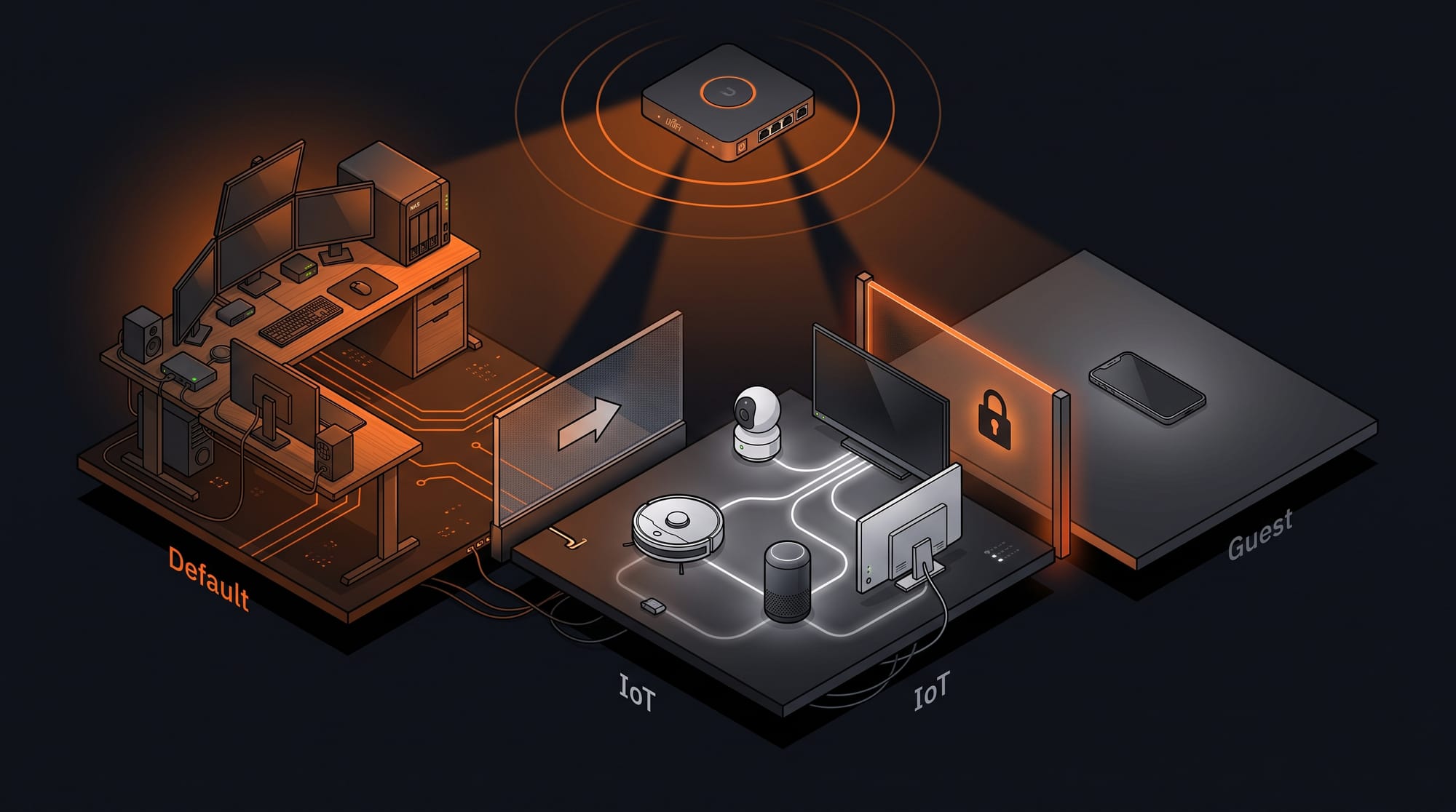
If you have been running all your devices on the same WiFi network, you have probably not given it much thought until something made you. A robot vacuum phoning home to unknown servers. A guest who can reach your NAS without trying. A smart TV making hundreds of tracking requests every hour.
Network segmentation fixes all of this. This guide covers a complete setup with three isolated networks on a UniFi Cloud Gateway: the exact firewall rules, DNS configuration, and bandwidth policies that make containment actually stick.
The Architecture
Three networks, three different trust levels:
- Default: your trusted network. Full access, no restrictions.
- IoT: semi-isolated. Devices can reach the internet and use your DNS resolver, but cannot initiate connections to Default. Default can reach IoT (so you can control your smart home devices).
- Guest: fully isolated. Internet only. No LAN access, no inter-device communication.
Here is the complete traffic matrix before touching a single setting:
| Traffic | Allowed |
|---|---|
| Default → IoT | ✅ Yes |
| Default → Guest | ❌ No |
| IoT → Default | ❌ No |
| IoT → AdGuard DNS (10.1.1.11:53) | ✅ Yes (explicit exception) |
| IoT → Router UI (10.1.1.1:80/443) | ❌ No |
| IoT → Router DNS (10.1.1.1:53) | ❌ No (force AdGuard) |
| IoT ↔ IoT | ❌ No (client isolation) |
| Guest → LAN | ❌ No |
| Guest ↔ Guest | ❌ No (client isolation) |
The DNS design is worth explaining upfront. IoT devices are forced to use AdGuard Home running on 10.1.1.11 on the Default network. This means your ad and tracker blocking applies to every IoT device automatically: your smart TV, your robot vacuum, your IP cameras, without touching each device individually. They cannot bypass AdGuard by querying the router directly either, because that path is explicitly blocked.
Network and VLAN Setup
Go to Settings → Networks and create three networks.
Default (your existing network)
This is likely already configured. Verify it matches:
- Name:
Default - VLAN ID:
1 - Subnet:
10.1.1.0/24 - Gateway:
10.1.1.1 - DHCP: Server, range
10.1.1.6 to 10.1.1.254
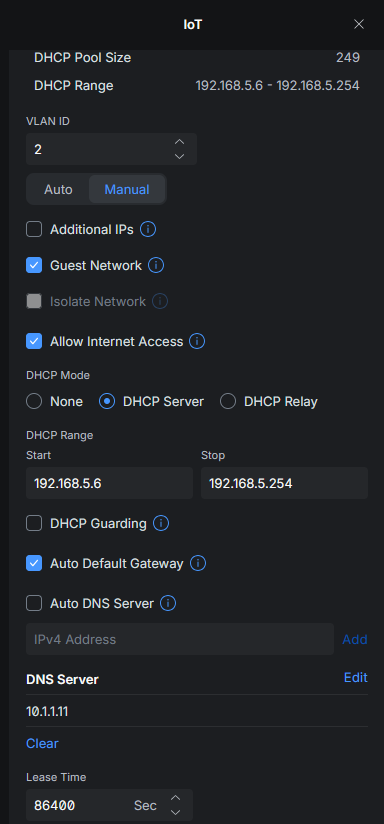
IoT Network
- Name:
IoT - VLAN ID:
2 - Subnet:
192.168.5.0/24 - Gateway:
192.168.5.1 - DHCP: Server, range
192.168.5.6 to 192.168.5.254 - Guest Network: ✅ Enabled (enables internet access with LAN isolation baseline)
- DNS Server:
10.1.1.11(AdGuard Home, set manually, do not use Auto DNS)
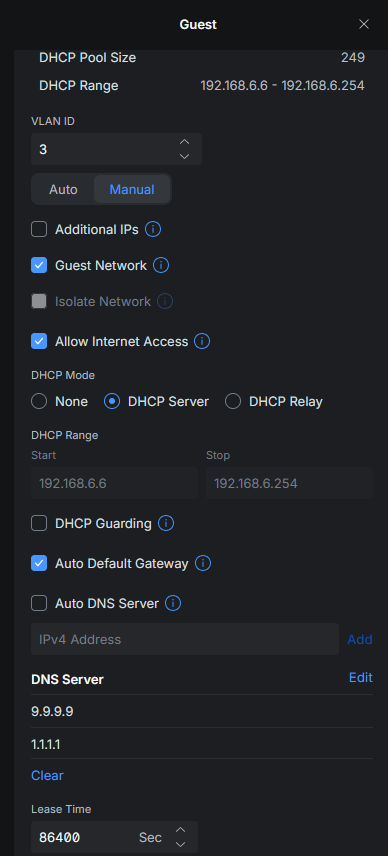
Guest Network
- Name:
Guest - VLAN ID:
3 - Subnet:
192.168.6.0/24 - Gateway:
192.168.6.1 - DHCP: Server, range
192.168.6.6 to 192.168.6.254 - Guest Network: ✅ Enabled
- DNS Server:
9.9.9.9,1.1.1.1(public resolvers, no need for AdGuard on Guest)
WiFi SSIDs
Go to Settings → WiFi and create three SSIDs. Each SSID is tied to its own network, which is what puts a device on the right VLAN the moment it connects.
Default WiFi
- Network:
Default - Security: WPA3 or WPA2/WPA3 mixed
- Bands: 2.4 GHz + 5 GHz + 6 GHz (all available)
- Client Device Isolation: Off
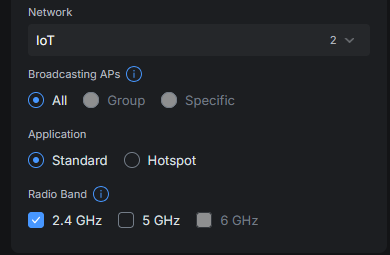
IoT WiFi
Most IoT devices only support 2.4 GHz. Forcing this band avoids connection failures and removes the ambiguity of dual-band negotiation.
- Network:
IoT - Security: WPA2
- Bands: 2.4 GHz only
- Client Device Isolation: On
Guest WiFi
- Network:
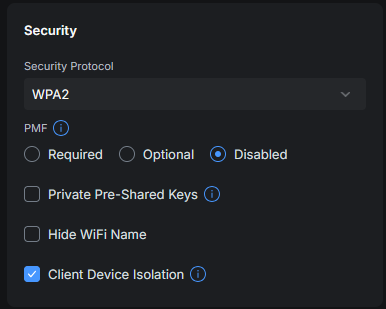
Guest - Security: WPA2 (maximum compatibility for visiting devices)
- PMF: Disabled (acceptable on a fully isolated guest network)
- Bands: 2.4 GHz + 5 GHz
- Client Device Isolation: On
- Bandwidth Limit: None (Guest is already isolated from your LAN)
Bandwidth Limiting
UniFi lets you cap bandwidth per SSID under Settings → WiFi → [network] → WiFi Speed Limit.
IoT devices have no business saturating your connection. A misconfigured camera doing a cloud backup or a device phoning home aggressively should not impact your main network.
- Default: Unlimited
- IoT: 50 Mbps down / 20 Mbps up
- Guest: Unlimited (internet-only, isolated from your LAN)

Firewall Rules
This is the core of the setup. Go to Settings → Firewall & Security → Firewall Rules.
UniFi evaluates rules top to bottom and stops at the first match. Order is critical. Here is the complete rule set with the correct ordering:
| # | Name | Type | Protocol | Source | Destination | Port | Action |
|---|---|---|---|---|---|---|---|
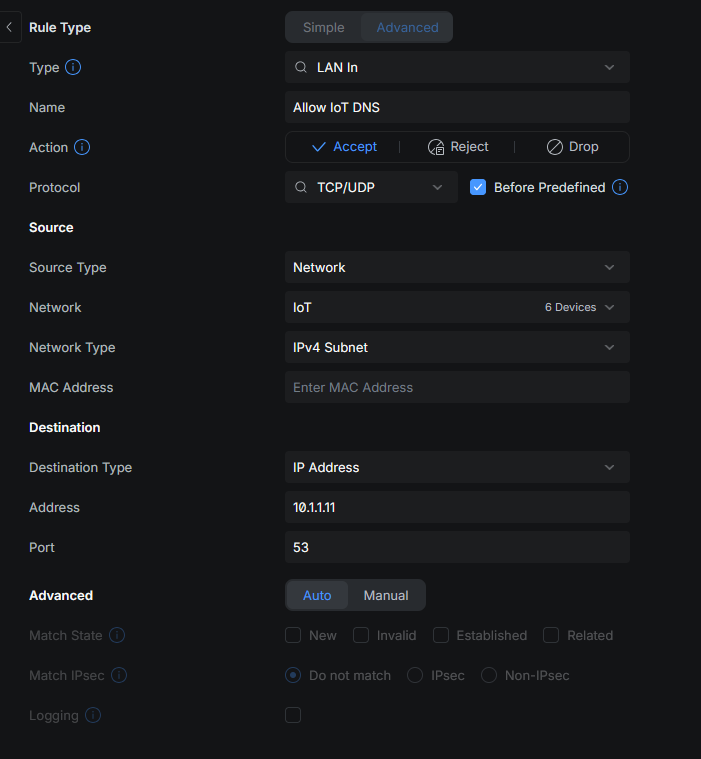
| 1 | Allow IoT DNS | LAN In | TCP/UDP | IoT | 10.1.1.11 | 53 | Accept |
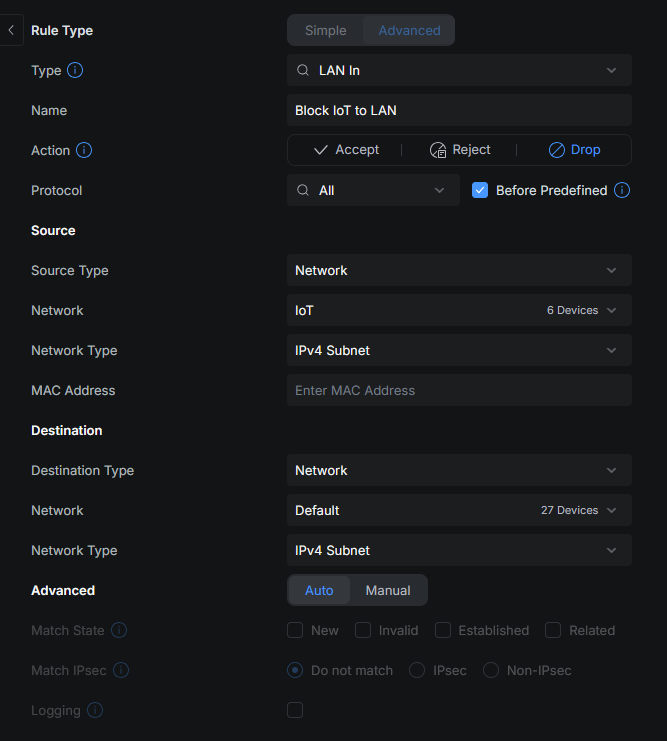
| 2 | Block IoT to LAN | LAN In | All | IoT | Default | Any | Drop |
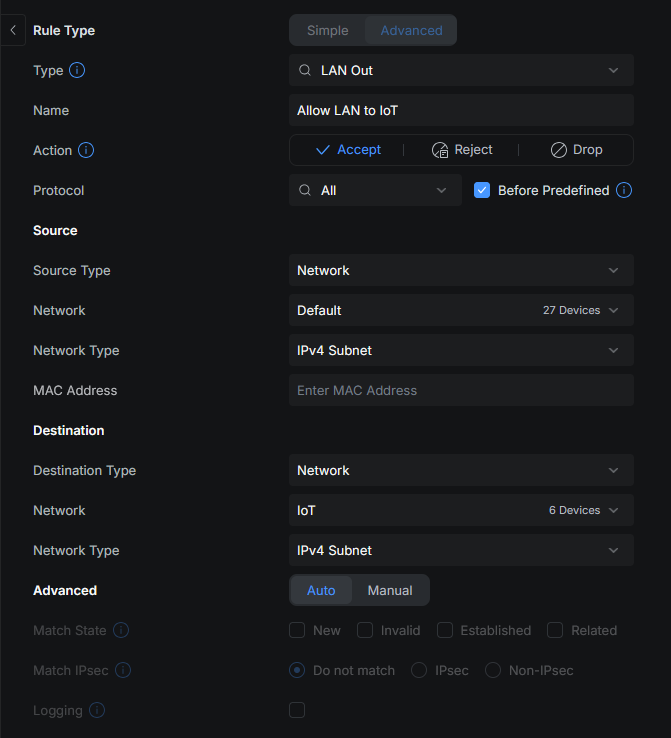
| 3 | Allow LAN to IoT | LAN Out | All | Default | IoT | Any | Accept |
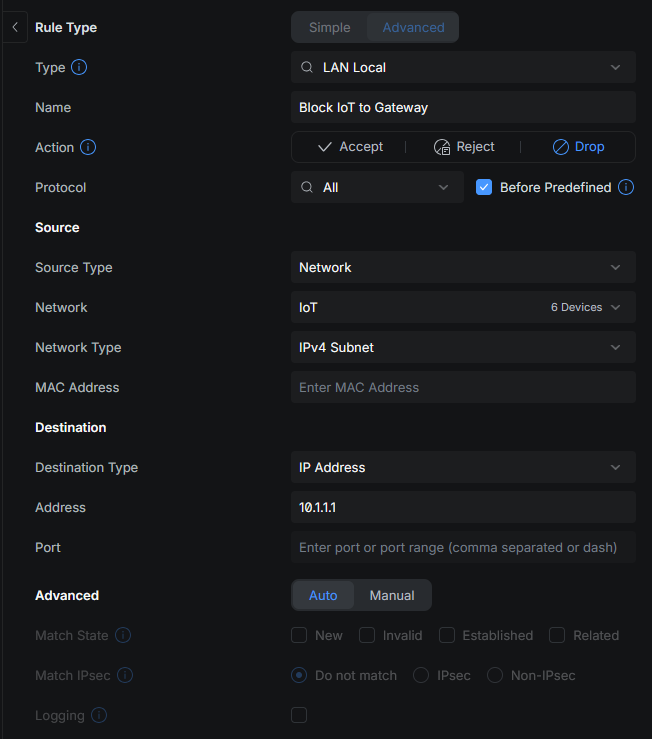
| 4 | Block IoT to Gateway | LAN Local | All | IoT | 10.1.1.1 | Any | Drop |
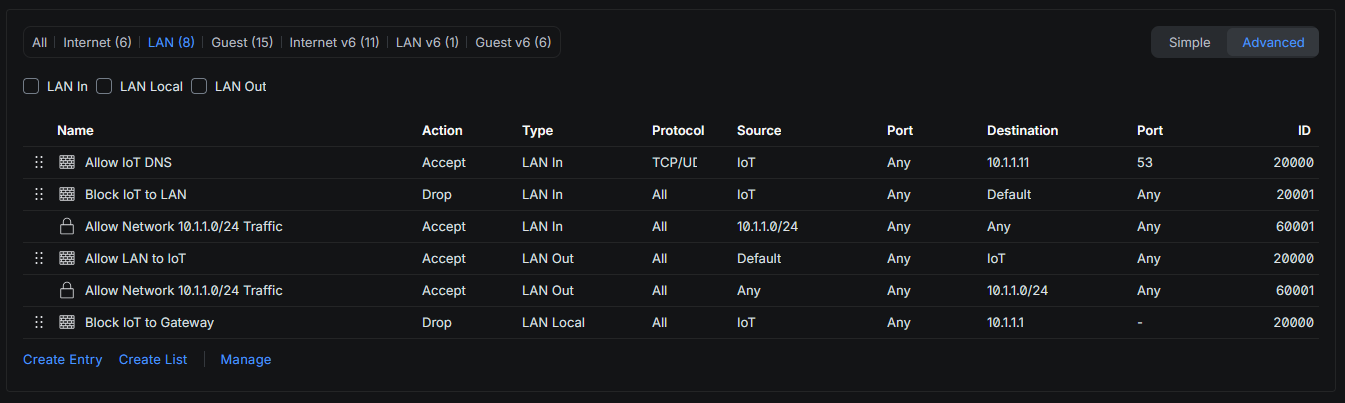
A note on “Before Predefined”. Every rule in this guide has the Before Predefined option enabled. UniFi ships with built-in system rules that run automatically and cannot be deleted (the two locked entries visible in the firewall list above). Without this option, your custom rules are evaluated after those system rules. A system “Allow” rule could accept traffic before your block rule ever fires, making it ineffective. Enabling Before Predefined forces your rules to run first, ahead of everything UniFi puts there by default. All four rules here require it.
Why this order matters
Rule 1 must come before Rule 2. The DNS allow is an exception to the LAN block. If the block fires first, IoT devices lose DNS entirely. Rule 1 targets 10.1.1.11 specifically (your AdGuard instance), not the gateway itself, so the two rules do not conflict.
Rule 2 drops all traffic from IoT toward the Default network. This is your primary containment rule.
Rule 3 is LAN Out, which controls traffic leaving toward IoT. This is what allows you to ping, access the web UI of, or send commands to IoT devices from your Default network.
Rule 4 is LAN Local, covering traffic destined for the gateway itself at 10.1.1.1. Without this, an IoT device could access the UniFi admin interface or bypass AdGuard by querying the router's built-in DNS directly.
Note the two locked rules Allow Network 10.1.1.0/24 Traffic visible in the interface. These are system-generated rules from UniFi. Do not modify or delete them.
Guest firewall
Guest isolation is handled automatically by enabling Guest Network on the VLAN and Client Device Isolation on the SSID. UniFi applies its own default Guest policies that block LAN access. No manual firewall rules are needed for Guest beyond what is already in place.
DNS and AdGuard Home
AdGuard Home runs on 10.1.1.11 on the Default network. It handles DNS for all three networks, but in different ways:
- Default devices are configured to use
10.1.1.11directly (or via DHCP option) - IoT devices receive
10.1.1.11as their DNS server via DHCP, and the firewall ensures they cannot bypass it by querying10.1.1.1:53 - Guest devices use public resolvers (
9.9.9.9,1.1.1.1) since they are fully isolated and do not benefit from local DNS
The practical result: every IoT device, smart TVs, IP cameras, robot vacuums, has its DNS queries filtered by AdGuard. Domains used for tracking, telemetry, and advertising are blocked at the network level without touching each device. You can also see per-device query logs in AdGuard, broken down by IP, which gives you full visibility into what your IoT devices are actually trying to reach.
Verification
Test IoT containment
From a device connected to the IoT SSID:
# Should FAIL — IoT cannot reach Default network
ping 10.1.1.1

# Should SUCCEED — DNS via AdGuard is explicitly allowed
nslookup google.com 10.1.1.11

# Should FAIL — cannot bypass AdGuard via router DNS
nslookup google.com 10.1.1.1

# Should FAIL — router admin UI is blocked
curl -k https://10.1.1.1
Test Default to IoT access
From a device on the Default network:
# Should SUCCEED — Default can reach IoT devices
ping 192.168.5.x  # replace with an IoT device IP
Test Guest isolation
From a device on the Guest SSID:
# Should FAIL — no LAN access
ping 10.1.1.1
ping 192.168.5.1
ping 192.168.6.1

# Should SUCCEED — internet works
curl https://example.com
Common Mistakes
Wrong rule order. If Block IoT to LAN sits above Allow IoT DNS, DNS is blocked before the exception fires. Always put exceptions above their corresponding block rules.
Using Auto DNS on IoT. If you leave Auto DNS Server enabled on the IoT network, devices may receive the router's DNS (10.1.1.1) instead of AdGuard. Disable Auto DNS and set 10.1.1.11 manually.
Skipping client isolation on IoT. The firewall rules block inter-VLAN traffic. Client isolation blocks intra-VLAN traffic, meaning device to device on the same IoT network. You need both. A compromised IoT device should not be able to scan or attack its VLAN neighbors.
Not limiting IoT bandwidth. Without a cap, a single aggressive IoT device can saturate your uplink. 50/20 Mbps is more than enough for any legitimate IoT use case.
Final Architecture
Internet
    |
    v
UniFi Cloud Gateway (10.1.1.1)
    |
    +-- Default  VLAN 1  10.1.1.0/24
    |       |  AdGuard Home @ 10.1.1.11
    |       |  can reach IoT (LAN Out rule)
    |
    +-- IoT  VLAN 2  192.168.5.0/24
    |       |  2.4 GHz only / 50 down 20 up Mbps / Client isolation
    |       |  DNS -> 10.1.1.11 (AdGuard)
    |       |  cannot reach Default
    |       |  cannot reach router UI or DNS
    |
    +-- Guest  VLAN 3  192.168.6.0/24
            |  WPA2 / Client isolation
            |  DNS -> 9.9.9.9, 1.1.1.1
            |  cannot reach any LAN
What to Do Next
AdGuard blocklists for IoT. Add dedicated IoT-specific blocklists in AdGuard (OISD, HaGeZi Multi) to catch telemetry domains specific to smart home devices. With your setup, every IoT device's DNS goes through AdGuard and you will immediately see which devices are the noisiest.
Threat Management. Enable IDS/IPS under Settings → Security → Threat Management and point it at IoT and Guest traffic. This adds signature-based detection for known malicious patterns on top of your network segmentation.
Static DHCP leases for IoT devices. Assign fixed IPs to your IoT devices by MAC address. This makes AdGuard logs readable (you see the device name instead of a rotating IP) and lets you write more granular firewall rules per device if needed.