
Migrating from USG-3P to UniFi Cloud Gateway Fiber
A complete, phone-only migration guide from a USG-3P and self-hosted Docker controller to the UniFi Cloud Gateway Fiber, including what the backup covers, what needs manual work, and how to avoid the most common pitfalls.

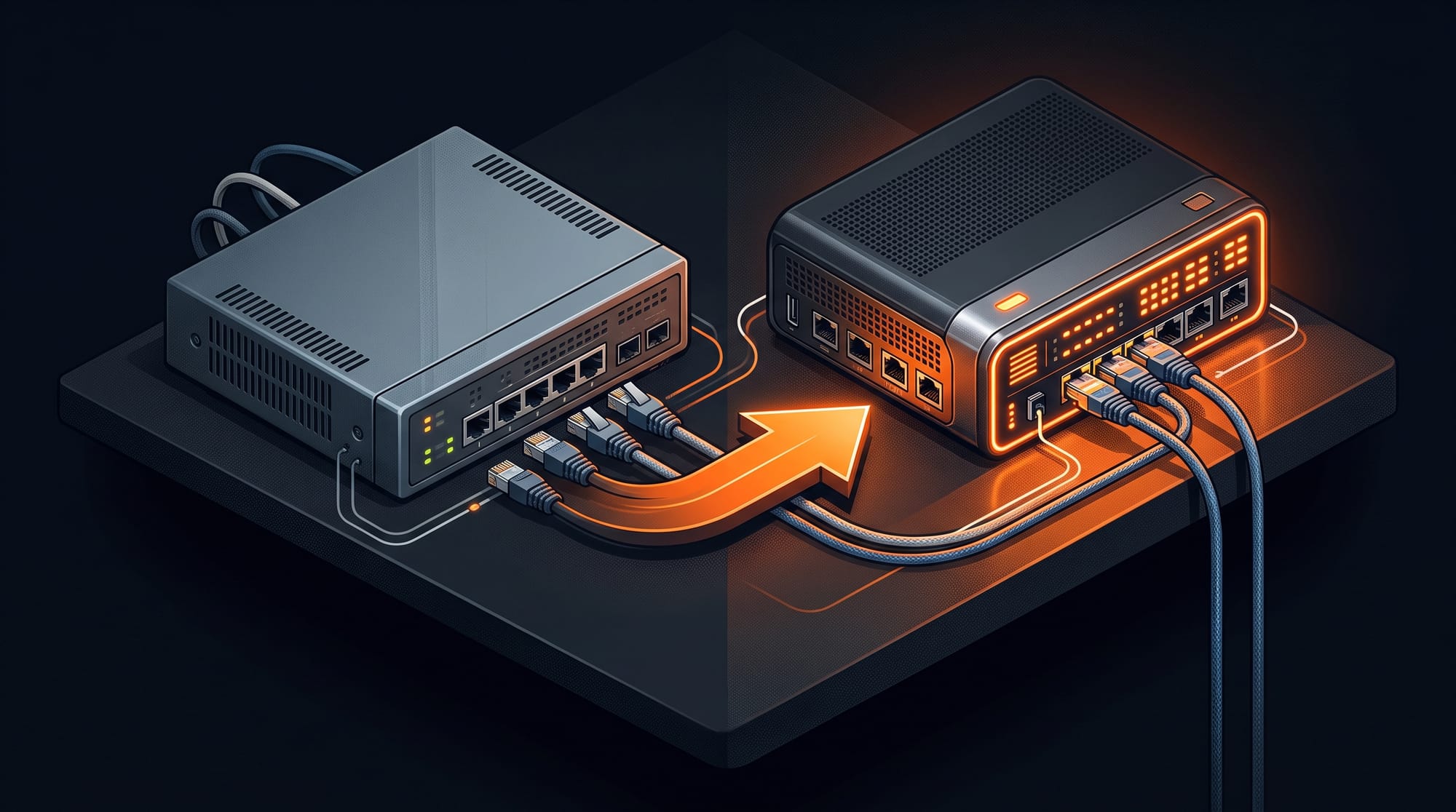
If you have been running a UniFi network on a USG-3P with a self-hosted Docker controller for years, you have probably hit the same ceiling. The USG-3P is a capable router, but its aging hardware means enabling IDS/IPS drops your throughput significantly. Running deep packet inspection at gigabit speeds is simply not possible without accepting a painful performance tradeoff.
The Cloud Gateway Fiber changes that entirely. It runs full IDS/IPS threat analysis at line rate with no throughput penalty, thanks to its dedicated security processor. It supports 10Gbps connectivity out of the box. Drop in an NVMe drive and it becomes a UniFi Protect NVR, handling camera recording natively without any additional hardware. And it eliminates the Docker controller entirely, bringing everything into a single, self-contained appliance that is always on and always in sync.
The migration is not a simple cable swap, but it is straightforward if done in the right order. This guide covers the complete process, phone only, no laptop required.
Understanding the Architecture Change
The most important thing to understand before touching any hardware is that the UCG-Fiber runs its own embedded Network Application. It cannot be managed by a self-hosted Docker controller or a Cloud Key. It IS the controller. This means the migration path is: export your config from Docker, import it into the UCG-Fiber, then decommission the Docker container entirely.
Your network in this guide runs on 10.1.1.1 (UniFi LAN gateway) with an ISP box sitting upstream at 192.168.1.1. This non-default subnet matters for sequencing the setup correctly, as the UCG-Fiber boots at 192.168.1.1 by default.
Phase 1: Export Backup from Your Docker Controller
Before touching any hardware, capture a full backup from your running Docker controller.
- On your phone's browser, open
http://10.1.1.x:8443(your Docker host IP). - Go to Settings > System > Backups and create a fresh backup.
- Tap Download and the
.unffile will land in your phone's Downloads folder.
Note the exact Network Application version shown at the bottom of the Settings page. The UCG-Fiber must be updated to this version or newer before restoring the backup, otherwise the import will fail silently or produce a broken config.
Phase 2: First Boot the UCG-Fiber in Isolation
The UCG-Fiber's LAN defaults to 192.168.1.1. Plugging its LAN into your 10.1.1.x production network before restoring the backup would cause DHCP conflicts and a chaotic double-gateway situation. The correct approach keeps the UCG's LAN ports completely empty during setup.
- Connect to your ISP box and remove the DMZ if existing (to prevent double NAT with USG-3P)
- Connect the UCG-Fiber's WAN port to a free port on your ISP existing
192.168.1.xswitch. This feeds it internet through, while its own LAN remains isolated. - Leave all UCG-Fiber LAN ports unplugged.
- Power it on. The WAN interface will request a DHCP lease from your ISP box and appear as a new client.
The UCG-Fiber is effectively a client device on your network at this stage, creating a temporary double NAT. This does not matter. It only needs internet access to pull firmware updates, and your production traffic continues flowing through the USG-3P unaffected.
Phase 3: Initial Setup via Bluetooth
The UniFi mobile app handles the entire initial setup over Bluetooth, with no laptop or direct LAN connection required.
- Open the UniFi app on your phone.
- Tap Add Device and the app discovers the UCG-Fiber over Bluetooth automatically.
- Complete the setup wizard and sign in with your UI account.
- Let it update UniFi OS and the Network Application fully. The device may reboot once or twice. Wait until it settles and shows as online.
- Confirm the Network Application version on the UCG-Fiber matches or exceeds the version from Phase 1.
Phase 4: Restore the Backup
With firmware updated, you can now restore your full network configuration.
- In the UniFi app, navigate to your UCG-Fiber console.
- Go to Settings > System > Backups > Restore.
- Select the
.unffile from your phone's Downloads folder. - Confirm and wait. This takes between 5 and 15 minutes. Keep the app open and your phone screen active throughout.
- The UCG-Fiber reboots automatically when done.
After reboot, open the app and verify your networks, VLANs, SSIDs, firewall rules, and client list are all present. Every device will show as offline. This is expected since they are still physically connected to the USG-3P.
Phase 5: The Cable Swap
This is the only step that causes downtime, roughly 30 seconds.
- Unplug the WAN cable from the USG-3P and plug it into the UCG-Fiber's WAN port.
- Unplug the LAN cable from the USG-3P and plug it into one of the UCG-Fiber's LAN ports.
- Remove the temporary cable that ran from the UCG's WAN port to your switch during setup.
- Power off the USG-3P.
The UCG-Fiber is now live as your gateway at 10.1.1.1.
Phase 6: Device Re-adoption
Since the gateway IP stays at 10.1.1.1, most switches and APs will reconnect and re-adopt automatically within a few minutes. Watch the Devices tab and they should transition from offline to connected one by one.
If any device stays stuck as offline, SSH into it and run:
set-inform http://10.1.1.1:8080/informThen accept the pending adoption in the UniFi app.
Phase 7: Decommission the Docker Controller
Only after all devices are green and the network has been stable for a few hours:
- Stop and remove the Docker container.
- Keep the
.unfbackup file as a cold archive. - The UCG-Fiber is now your sole controller.
What the Backup Covers
| Included in backup | Not included, redo manually |
|---|---|
| All networks and VLANs | Custom device images |
| DHCP settings and fixed IP reservations | config.gateway.json overrides |
| WiFi SSIDs and passwords | WireGuard and Teleport VPN client enrollments |
| Firewall and traffic rules | RADIUS and 802.1X shared secrets |
| Port forwarding rules | Local only admin accounts |
| Static routes | SSH keys and OS level customisations |
| Client names and aliases | |
| Switch port profiles and AP radio settings |
Advanced firewall rules that reference specific device IPs are worth double checking after restore. If a device re-adopts with a different IP than expected, the rule target may break.
Common Pitfalls
Backup restore fails: The UCG-Fiber firmware version must be equal to or newer than the Network Application version that created the backup. Check both before restoring.
Devices stuck offline after swap: Run set-inform manually via SSH as shown in Phase 6. This is almost always the fix.
config.gateway.json overrides missing: This file is not supported on the UCG-Fiber. Any advanced routing or NAT rules that lived in that file need to be recreated through the UI.
WireGuard or Teleport VPN: The server config may restore but connected clients often need to re-enroll after migration.
VLAN config imported but greyed out: A known UI quirk on some UCG-Fiber firmware versions. The VLANs still function correctly. This is a display issue only.